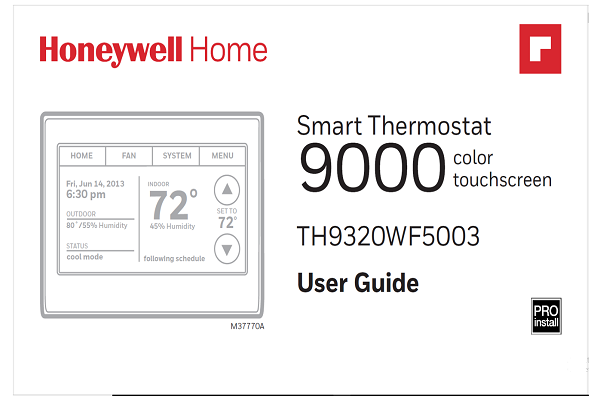
HONEYWELL WIFI 9000 COLOR TOUCHSCREEN THERMOSTAT User Guide
HONEYWELL WIFI 9000 COLOR TOUCHSCREEN Features of your Smart thermostat
The Honeywell WiFi 9000 Color Touchscreen Thermostat is a programmable thermostat that allows you to control the temperature in your home or business from anywhere with an internet connection. Here are some key features of this thermostat:
With your new thermostat, you can:
- Connect to the Internet to monitor and control your heating/coolinga system.
- View and change your heating/cooling system settings.
- View and set temperature and schedules.
- WiFi connectivity: The WiFi 9000 can be connected to your home or business WiFi network, allowing you to control your thermostat remotely using the Honeywell Total Connect Comfort app.
- Color touchscreen: The thermostat features a large, easy-to-read color touchscreen display that shows the current temperature, humidity, and system status.
- Flexible programming: The WiFi 9000 allows you to create custom heating and cooling schedules based on your preferences and lifestyle. You can set different schedules for weekdays and weekends, and even create temporary schedules for special occasions.
- Energy-saving features: The thermostat includes a number of energy-saving features, such as a "vacation mode" that allows you to set the temperature lower when you're away from home, and a "smart response" feature that learns your heating and cooling preferences and adjusts the temperature accordingly.
- Compatibility: The WiFi 9000 is compatible with most HVAC systems, including heating and cooling systems that use gas, oil, or electric power.
- Receive alerts via email and get automatic upgrades.
- View outdoor temperature and humidity (requires Wi-Fi set up and registration).
Setting up your thermostat
- Connect it to your home wireless network.
- Register online for remote access.
Connecting to your Wi-Fi network
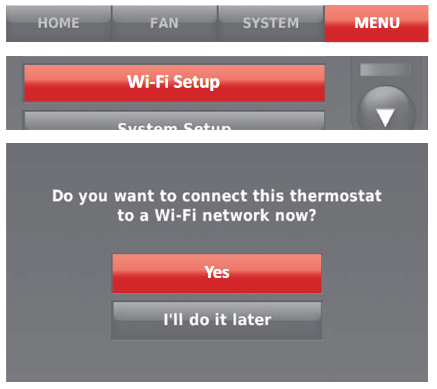
- Connect the Wi-Fi network. 1a Touch MENU > Wi-Fi Setup. -OR- Touch Yes to connect the thermostat to your Wi-Fi network. The screen displays the message “Searching for wireless networks. Please wait...” after which it displays a list of all Wi-Fi networks it can find
-
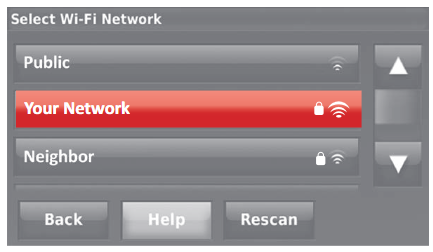
Select the network.
-
2a Touch the name of the network you want to use. The thermostat displays a password page. Note: If your home network is not shown on the list, touch Rescan.
-
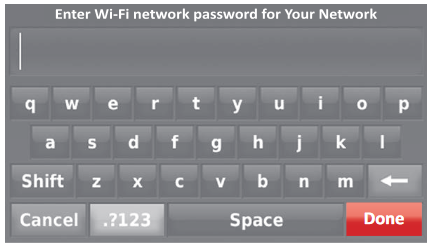
2b Using the keyboard, touch the characters that spell out your home network password.
-
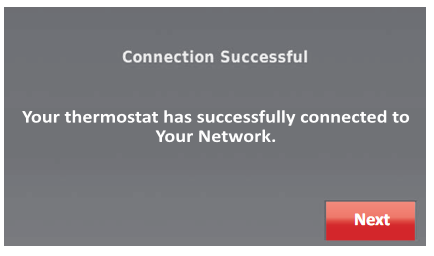
2c Touch Done. The thermostat displays “Connecting to your network. Please wait...” then shows a “Connection Successful” screen.
-
2d Touch Next to display the registration information screen.
-
2e Note your Thermostat MAC and Thermostat CRC. You need these numbers to complete online registration.
-
-
Register your thermostat, follow the instructions below.
Note: The Register Online screen remains active until you complete registration and/or touch Done.
Note: If you touch Done before you register online, your home screen displays an orange alert button telling you to register. Touching that button displays registration information and an option to snooze the task.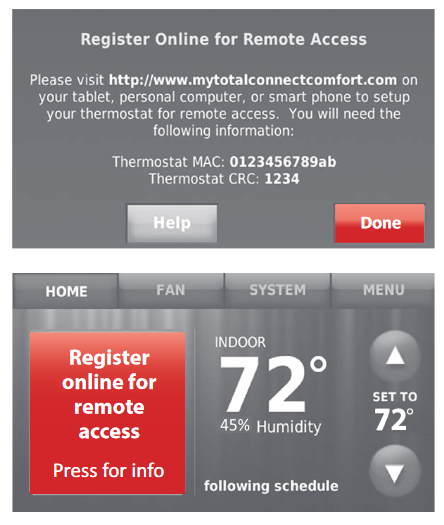
Readmore and Download WIFI 9000 COLOR TOUCHSCREEN THERMOSTAT Manual User Guide
| Title | WIFI 9000 COLOR TOUCHSCREEN THERMOSTAT Manual User Guide |
| Format | |
| Pages | 92 Pages |
| Language | English |
| File Size | 12 MB |